JavaScript Basics
In this tutorial, you will learn the basics of JavaScript, the most popular and widely used programming language in the world, known for its versatility and power in web development. Since its creation, it has been the driving force behind the interactivity and dynamism of web pages.
JavaScript is the programming language of the web, meaning it runs in browsers, allowing developers to create rich and functional user experiences. With JavaScript, you can manipulate the DOM (Document Object Model) to update page content, respond to user events, validate forms, animate elements, and much more, without needing to reload the page.
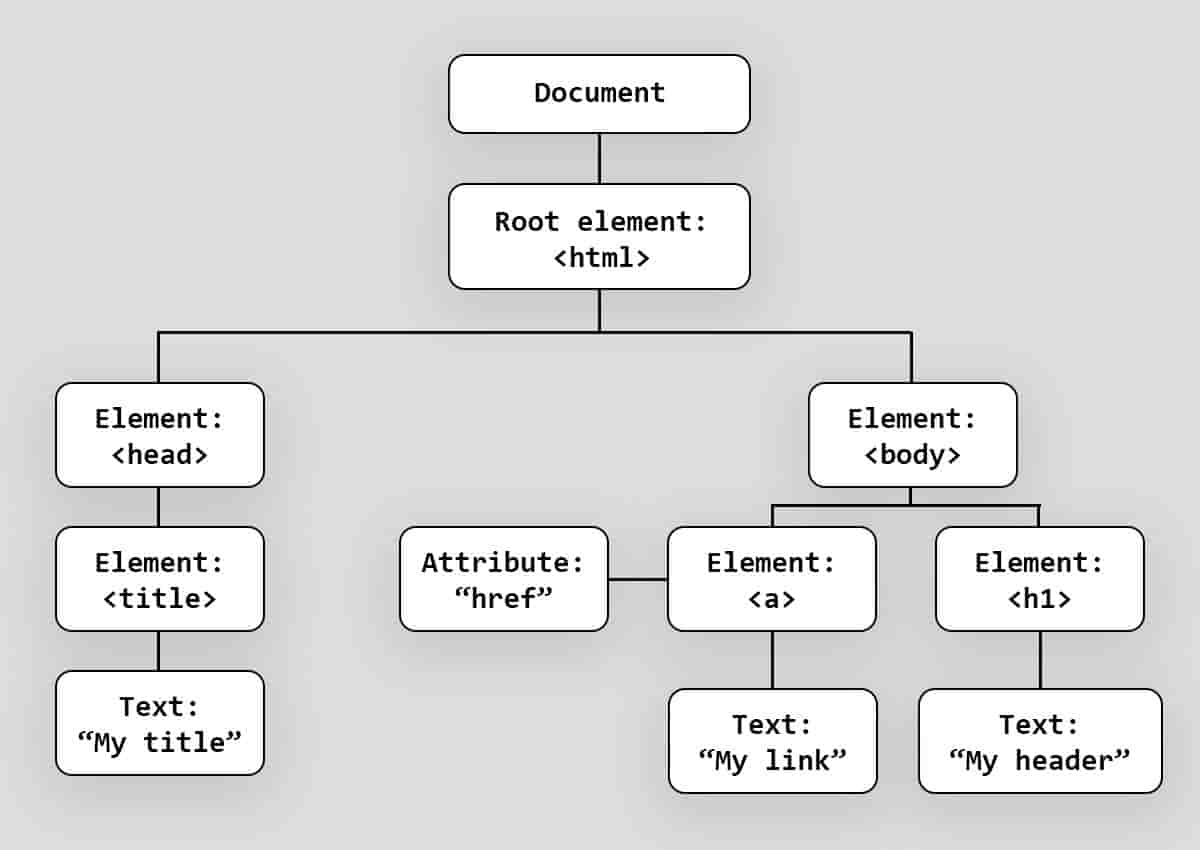 DOM: Document Object Model
One of the great advantages of JavaScript is its ease of learning. Its syntax is intuitive and accessible to beginners, allowing new developers to quickly start writing functional code. Furthermore, there are a wealth of resources, communities, and tools available to learn and hone your JavaScript skills.
This tutorial is designed to take you from the basics to advanced JavaScript techniques. You'll begin by learning the fundamentals of the language, including variables, data types, and control structures. As you progress, you'll explore more complex topics such as functions, objects, and DOM manipulation. Finally, you'll delve into advanced concepts like asynchronicity, promises, and modern browser APIs.
:::Tip NOTE Throughout this tutorial, you'll work through practical examples and projects that will help you solidify your knowledge and develop skills applicable in the real world. Get ready to discover the potential of JavaScript and transform the way you interact with the web!
:::
JavaScript Can Change HTML Content
Document Object Model (DOM)
The Document Object Model (DOM) is a structured representation of an HTML or XML document. It allows programming languages, such as JavaScript, to interact with the document's content and structure dynamically. The DOM transforms the document into a tree of nodes, where each node represents a part of the document, such as elements, attributes, and text.
One of the most commonly used methods in JavaScript for interacting with the Document Object Model (DOM) isgetElementById()This method allows you to select a specific HTML element using its id attribute.
In the following example, we usegetElementById()to "find" an HTML element with theid="demo"Once selected, we change the content of the element by modifying its propertyinnerHTML, setting it to "Hello JavaScript":
Example
<!DOCTYPE html>
<html>
  <head>
    <title>Ejemplo de getElementById()</title>
  </head>
  <body>
    <p id="demo">Este es un párrafo.</p>
    <script>
      document.getElementById("demo").innerHTML = "Hola JavaScript";
    </script>
  </body>
</html>

JavaScript can change the values of HTML attributes
In this example, JavaScript changes the value of the attributesrc(source) of a label<img>
<!DOCTYPE html>
<html>
  <body>
    <h1>JavaScript puede cambiar los valores de los atributos HTML.</h1>

    <button onclick="document.getElementById('myImage').src='pic_bulbon.gif'">
      Enciende la luz
    </button>

    <img id="myImage" src="pic_bulboff.gif" style="width:100px" />

    <button onclick="document.getElementById('myImage').src='pic_bulboff.gif'">
      Apaga la luz
    </button>
  </body>
</html>
JavaScript Can Change HTML Styles (CSS)
JavaScript can not only modify the content of HTML elements, but it also has the ability to dynamically alter their CSS styles. This allows developers to change the appearance of a web page in response to user events or actions, significantly improving interactivity and the user experience.
Modifying the style of an HTML element with JavaScript is similar to changing an HTML attribute. You can access an element's style properties and assign them new values.
Example
In the following example, we use JavaScript to change the font size of an HTML element with theid="demo"at 35 pixels:
<!DOCTYPE html>
<html>
  <head>
    <title>Cambiar Estilos con JavaScript</title>
  </head>
  <body>
    <p id="demo">Este es un párrafo.</p>
    <script>
      document.getElementById("demo").style.fontSize = "35px";
    </script>
  </body>
</html>
In this code:
document.getElementById("demo")select the element<p>with the `id="demo".
.style.fontSize = "35px" changes the CSS fontSize property of the selected element, setting the font size to 35 pixels.
Where to write JavaScript
The tag<script>
In HTML, JavaScript code is inserted between the tags.<script> and </script>
<script>
  document.getElementById("demo").innerHTML = "Mi primer JavaScript";
</script>
JavaScript in<head> either <body>
You can place any number of scripts in an HTML document.
Scripts can be placed in the <script> section.<body>or in the<head>of an HTML page, or in both.
JavaScript in<head>
In this example, a JavaScript function is placed in the section<head>of an HTML page.
The function is invoked (called) when a button is clicked.
Example
<!DOCTYPE html>
<html>
  <head>
    <script>
      function myFunction() {
        document.getElementById("demo").innerHTML = "Paragraph changed.";
      }
    </script>
  </head>
  <body>
    <h2>Demo JavaScript in Head</h2>

    <p id="demo">A Paragraph</p>
    <button type="button" onclick="myFunction()">Try it</button>
  </body>
</html>
JavaScript in<body>
In this example, a JavaScript function is placed in the section<body>of an HTML page.
The function is invoked (called) when a button is clicked.
Example
<!DOCTYPE html>
<html>
  <body>
    <h2>Demo JavaScript in Body</h2>

    <p id="demo">A Paragraph</p>

    <button type="button" onclick="myFunction()">Try it</button>

    <script>
      function myFunction() {
        document.getElementById("demo").innerHTML = "Paragraph changed.";
      }
    </script>
  </body>
</html>
:::Tip NOTE
Place scripts at the bottom of the element<body>Improves display speed, because interpreting scripts slows down rendering.
:::
External JavaScript
Scripts can also be placed in external files.
JavaScript files have the .js file extension.
Example
function myFunction() {
  document.getElementById("demo").innerHTML = "Paragraph changed.";
}
External scripts are useful when you use the same code on many different web pages.
To use an external script, place the script's filename in the src (source) attribute of a <head> tag.<script>.
Example
<script src="myScript.js"></script>
You can place an external script reference in<head> either <body>as you wish.
The script will behave as if it were located exactly where the tag is.<script>
Note: External scripts cannot contain tags.<script>.
:::
Advantages of External JavaScript
Placing scripts in external files has several advantages:
-
It separates HTML and code.
-
It makes HTML and JavaScript easier to read and maintain.
-
Cached JavaScript files can speed up page loading.
To add multiple script files to a page, use multiple script tags.
<!DOCTYPE html>
<html>
  <body>
    <h2>Demo external JavaScript</h2>

    <p id="demo">A Paragraph</p>

    <button type="button" onclick="myFunction()">Try it</button>

    <script src="myScript1.js"></script>
    <script src="myScript2.js"></script>
  </body>
</html>
External References
An external script can be referenced in 3 different ways:
- With a complete URL (a full web address)
- With a file path (such as /js/)
- Without any path
This example uses a complete URL to link to myScript.js:
<!DOCTYPE html>
<html>
  <body>
    <h2>Demo external JavaScript</h2>

    <p id="demo">A Paragraph</p>

    <script
      src="https://unpkg.com/react@18/umd/react.development.js"
      crossorigin
    ></script>
  </body>
</html>
This example uses a file path to link to myScript.js:
<!DOCTYPE html>
<html>
  <body>
    <h2>Demo external JavaScript</h2>

    <p id="demo">A Paragraph</p>

    <script src="/js/myScript.js"></script>
  </body>
</html>
This example does not use any route to link to myScript.js:
<!DOCTYPE html>
<html>
  <body>
    <h2>Demo external JavaScript</h2>

    <p id="demo">A Paragraph</p>

    <script src="myScript.js"></script>
  </body>
</html>
JavaScript Output
JavaScript Display Possibilities
JavaScript can "display" data in different ways:
-
Writing to an HTML element, using
InnerHTML -
Write to the HTML output using
document.write() -
Write in an alert box, using
window.alert() -
By typing in the browser console, using
console.log()
Using internal HTML:innerHTML
To access an HTML element, JavaScript can use the methoddocument.getElementById(id)
The attributeiddefines the HTML element. The propertyinternalHTMLDefine the HTML content:
<!DOCTYPE html>
<html>
  <body>
    <h1>My First Web Page</h1>
    <p>My First Paragraph</p>

    <p id="demo"></p>

    <script>
      document.getElementById("demo").innerHTML = 5 + 6;
    </script>
  </body>
</html>
Usingdocument.write()
For testing purposes, it is convenient to usedocument.write()
<!DOCTYPE html>
<html>
  <body>
    <h1>My First Web Page</h1>
    <p>My first paragraph.</p>

    <script>
      document.write(5 + 6);
    </script>
  </body>
</html>
Wearing window.alert()
You can use an alert box to display data:
<!DOCTYPE html>
<html>
  <body>
    <h1>My First Web Page</h1>
    <p>My first paragraph.</p>

    <script>
      window.alert(5 + 6);
    </script>
  </body>
</html>
You can omit the keyword forwindow
In JavaScript, the window object is the object with global scope. This means that variables, properties, and methods belong to the window object by default. This also means that specifying the keywordwindowIt's optional:
<!DOCTYPE html>
<html>
  <body>
    <h1>My First Web Page</h1>
    <p>My first paragraph.</p>

    <script>
      alert(5 + 6);
    </script>
  </body>
</html>
Wearing console.log()
For debugging purposes, you can call the methodconsole.log()in the browser to display data.
<!DOCTYPE html>
<html>
  <body>
    <script>
      console.log(5 + 6);
    </script>
  </body>
</html>
JavaScript Printing
JavaScript does not have a print object or print methods.
You cannot access output devices from JavaScript.
The only exception is that you can call the print method.window.print()in the browser to print the contents of the current window.
<!DOCTYPE html>
<html>
  <body>
    <button onclick="window.print()">Print this page</button>
  </body>
</html>
JavaScript Comments
JavaScript comments can be used to explain JavaScript code and make it more readable.
JavaScript comments can also be used to prevent execution when testing alternative code.
Single-Line Comments
Single-line comments begin with//
JavaScript will ignore any text between .//and the end of the line (it will not be executed).
Multi-line comments
Multi-line comments begin with/*and end with*/
JavaScript will ignore any text between ./* and */
This example uses both single-line and multi-line comments (comment blocks) to explain the code:
// Change heading:
document.getElementById("myH").innerHTML = "My First Page";

// Change paragraph:
document.getElementById("myP").innerHTML = "My first paragraph.";

/*
The code below will change
the heading with id = "myH"
and the paragraph with id = "myP"
in my web page:
*/
document.getElementById("myH").innerHTML = "My First Page";
document.getElementById("myP").innerHTML = "My first paragraph.";
JavaScript Functions and Events
A JavaScript function is a block of JavaScript code that can be executed when it is "called".
For example, a function can be called when an event occurs, such as when the user clicks a button.
-
JavaScript Variables: Concepts about variables in JavaScript
-
JavaScript Operators: Basic JavaScript Operators
-
More about JavaScript: MDN JavaScript.
💻Try this basic JavaScript exercise: