Units of measurement and positioning in CSS
In web development, the precise handling of units of measurement and CSS positioning techniques is essential for creating responsive and well-designed web interfaces. This article will explore the different types of units of measurement and advanced positioning methods you can use to refine your web designs.
CSS Units of Measurement
Units of measurement in CSS determine how elements are sized and positioned on a web page. There are several units, each with its own use cases.
Absolute Units
Absolute units have a fixed size that doesn't adapt to the design context. They are useful when you need precise control over the size of elements.
px (pixels): One of the most common units. A pixel is a point on the device's screen.
.box {
  width: 200px;
  height: 100px;
}
Points (pt): Commonly used in printing, they represent 1/72 of an inch.
.print-text {
  font-size: 12pt;
}
cm (centimeters), mm (millimeters): These are rarely used on the web, but are useful for print design.
.print-box {
  width: 10cm;
  height: 5cm;
}
in (inches): Also primarily useful for print layouts.
.print-area {
  width: 3in;
  height: 2in;
}

Relative Units
Relative units adapt to the design environment, making them ideal for responsive designs.
% (percentage): Percentages are used relative to the size of the parent container.
.container {
  width: 80%; /* 80% del ancho del contenedor padre */
}
View Units: (vw, vh, vmin, vmax)
-
vw: 1% of the view window width.
-
vh: 1% of the view window height.
-
vmin: The smaller of vw and vh.
-
vmax: The larger of vw and vh.
.full-screen {
  width: 100vw; /* 100% del ancho de la ventana de visualización */
  height: 100vh; /* 100% de la altura de la ventana de visualización */
}
Em (em): Based on the font size of the parent element.
.text {
  font-size: 2em; /* 2 veces el tamaño de la fuente del elemento padre */
}
Rem (rem): Based on the font size of the document root (<html>).
html {
  font-size: 16px;
}
.text {
  font-size: 1.5rem; /* 1.5 veces el tamaño de la fuente del elemento raíz */
}
CSS Positioning
CSS positioning allows you to control how elements are placed on the page. There are several positioning methods, each with its own characteristics and uses.
Static Positioning
Static positioning is the default. Elements are placed in the normal flow of the document, one after the other.
.element {
  position: static; /* Valor por defecto */
}
Relative Positioning
Relative positioning allows you to move an element relative to its original position in the document flow. The moves are applied from its normal position.
.element {
  position: relative;
  top: 20px; /* Desplaza el elemento 20 píxeles hacia abajo */
  left: 10px; /* Desplaza el elemento 10 píxeles hacia la derecha */
}
Absolute Positioning
Absolute positioning removes the element from the normal document flow and positions it relative to its nearest container that has a non-static positioning.
.element {
  position: absolute;
  top: 50px; /* Posiciona el elemento 50 píxeles desde la parte superior del contenedor */
  left: 30px; /* Posiciona el elemento 30 píxeles desde la izquierda del contenedor */
}
Fixed Positioning
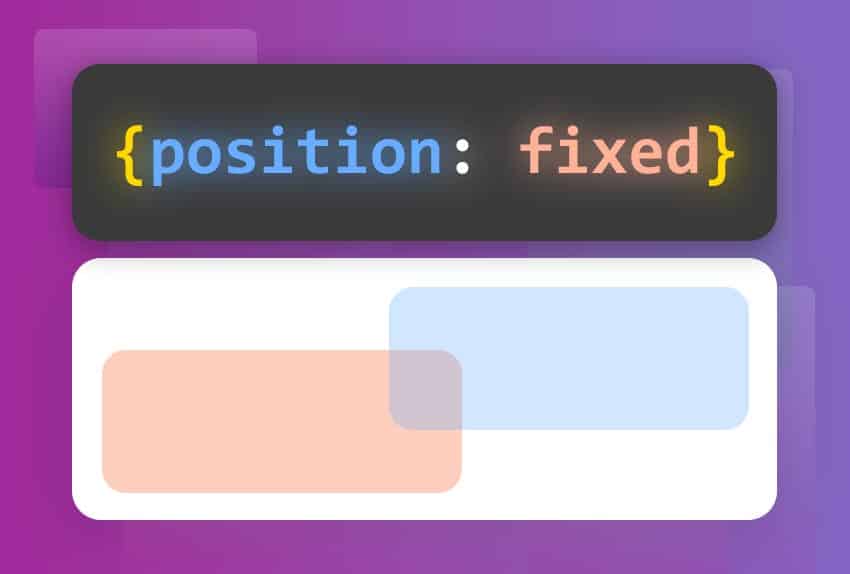
Fixed positioning places an element in a specific position within the viewport, regardless of page scrolling. This is useful for elements such as navigation bars or headings that need to remain visible.
.element {
  position: fixed;
  top: 0; /* Fija el elemento en la parte superior de la ventana de visualización */
  left: 0; /* Fija el elemento en la parte izquierda de la ventana de visualización */
}
Sticky Positioning
Sticky positioning combines features of relative and fixed positioning. The element behaves as relative until it reaches a specific threshold, at which point it behaves as fixed.
.element {
  position: sticky;
  top: 0; /* El elemento se adhiere a la parte superior de su contenedor cuando se desplaza */
}
Positioning with Flexbox
The Flexbox design model allows you to create flexible and responsive layouts. The child elements of a flex container can be efficiently aligned and distributed.
.container {
  display: flex; /* Activa el modelo Flexbox */
  justify-content: space-between; /* Distribuye los elementos con espacio entre ellos */
  align-items: center; /* Alinea los elementos verticalmente al centro */
}
Learn more about Flexbox in our dedicated article: Flexbox in CSS.
Grid Positioning
The Grid design model allows you to create complex two-dimensional layouts. Elements are placed on a grid defined by rows and columns.
.container {
  display: grid; /* Activa el modelo Grid */
  grid-template-columns: repeat(
    3,
    1fr
  ); /* Crea tres columnas de igual tamaño */
  grid-gap: 10px; /* Espacio entre las celdas de la cuadrícula */
}
Learn more about Grid in our dedicated article: CSS Grid
Conclusion
Using units of measurement and positioning techniques in CSS is fundamental for creating responsive and well-designed web interfaces. By understanding the different units and positioning methods, you can achieve precise control over the design and presentation of your web pages. Experiment with these techniques to hone your CSS skills and improve the user experience in your web projects.
-
Styling lists and tables with CSS: Styling lists and tables with CSS
-
Flexbox: Flexbox in CSS
-
More about units: MDN - CSS Values and Units
💻Get your hands on the code with these simple challenges: