2. Getting Started
This guide will walk you through your first experience with DivZone AI, from accessing the platform to creating your first project.
2.1 Accessing the Platform
DivZone AI is a web application; it requires no installation. Simply open your browser and accessai.div.zone/chatTo start generating your first website with artificial intelligence.
Requirements
- A modern web browser (Chrome, Firefox, Edge, Safari)
- Internet connection
- JavaScript enabled
For a better experience, use Chrome or Firefox. The live preview and code editor work best in these browsers.
2.2 Your First Generation
Let's create your first project. Follow these steps:
Step 1: Open the chat
When you access DivZone, you'll see a chat interface with a text field at the bottom. This is where you describe what you want to create.
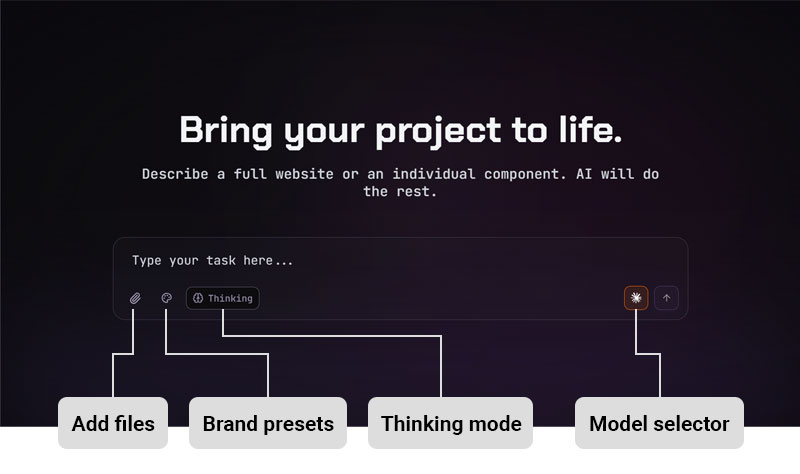 DivZone AI Chat Interface
Step 2: Write a request
Write a simple request like:
Crea una página de destino para una cafetería.
Step 3: Submit
Press Enter or click the Submit button to send your request.
Step 4: Watch the Generation
The AI will begin generating your project. You will see:
-
Status messages: "Processing…", "Writing files…"
-
Files appearing in the code panel
-
Live preview that updates in real time
Step 5: Explore Your Project
Once the generation is complete, you will have:
- A file tree in the left panel showing all the generated files
- A code editor displaying the contents of the selected file
- A live preview showing your project rendered in an iframe
The first generation might take a little longer while the AI initializes. Subsequent generations will be faster.
2.3 Understanding the Interface
The DivZone interface is divided into several key areas:
Header
- Logo — Click to go to the home page
- User Menu — Profile, Credits, Log Out
History Sidebar
-
Displays your recent projects
-
Pin important projects for quick access
-
Search your project history
-
Archive old projects to keep everything organized
Code Editor
-
Displays the contents of the selected file
-
Syntax highlighting for HTML, CSS, JS, and JSON
-
Edit files directly in the editor
-
Tab bar to switch between open files
Live Preview
-
Displays your real-time rendered project
-
Updates automatically when files change
-
Isolated in an iframe for greater clarity Security
Chat Input
- Writing prompts to generate or modify projects
- Select the AI model from the dropdown menu.
- Submit button to send your prompt.
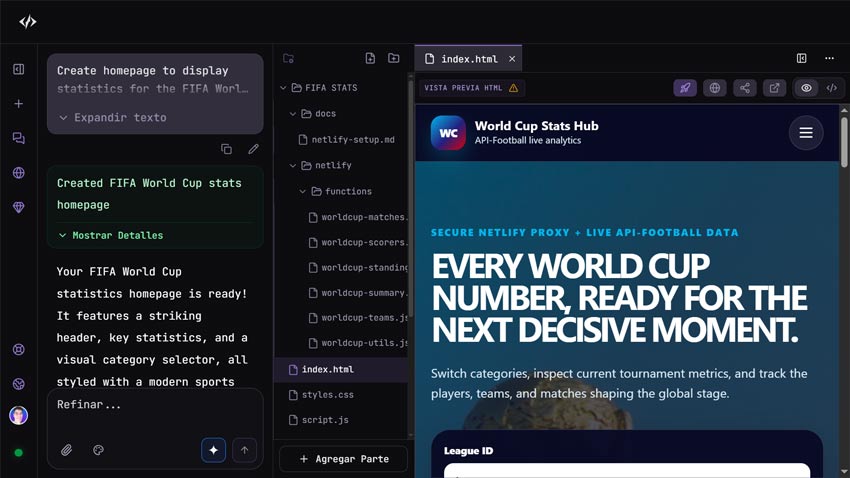 Preview and code editor interface
2.4 First Project Tutorial
Let's look at a complete workflow:
1. Generate a Project
Prompt: "Create a personal portfolio page with a main section, About Me, Skills, and a contact form."
The AI will generate:
-index.html— Homepage structure
-styles.css— Styling
-script.js— Interactivity (form handling, smooth scrolling)
2. Explore Files
Click on each file in the file tree to view its contents in the code editor. The preview will update to show the impact of the selected file.
3. Make a Small Edit
Click directly in the code editor and make a small change, such as updating the main title. The preview will update automatically.
4. Request a Change
Type a refinement suggestion: "Change the color scheme to dark mode with blue accents."
The AI will update the relevant files while preserving your manual edits.
5. Download Your Project
Click the Download button to get a ZIP file containing your entire project.
2.5 Tips for Good Suggestions
The quality of your build depends heavily on the suggestions. Here are some tips:
Be Specific
❌ "Make a website"
✅ "Create a landing page for a bakery with a hero section, menu grid, and contact form"
Describe the style
❌ "Create a portfolio"
✅ "Create a modern, minimalist portfolio page with a dark theme, smooth animations, and a grid layout for projects"
Mention Structure
❌ "Create a blog page"
✅ "Create a blog page with a header, featured posts section, article grid with cards, sidebar with categories, and footer"
Include technical preferences
❌ "Create a dashboard"
✅ "Create a dashboard layout with a sidebar navigation, top header bar, main content area with cards, and use Tailwind CSS for styling"
It doesn't have to be perfect on the first question. Start with a basic idea, see what the AI produces, and refine it with the following questions.
2.6 What's Next?
Now that you've created your first project, you can:
- Refine it with the following questions
- Edit files directly in the code editor
- Export your project as a ZIP file
- Share a public preview link
- Learn more about specific features in the following sections
Ready to delve deeper? Go to the next section: Authentication & Accounts